Siri, Apple’s intelligent voice assistant, has become a staple of the iOS experience since its introduction. Designed to help users perform tasks, answer questions, and control their devices hands-free, Siri is deeply integrated into the iPhone ecosystem. However, despite its utility, not every user finds the feature necessary or desirable. Whether you are looking to simplify your device usage, conserve battery, or maintain a higher level of privacy, you may find yourself wondering how to disable this feature entirely.
This guide provides a comprehensive walkthrough on how to completely turn off Siri on your iPhone, as well as alternative options for limiting its functionality without a full shutdown.
Why You Might Want to Turn Off Siri
While voice assistants are convenient for setting timers or checking the weather, there are valid reasons why a user might choose to disable Siri:
- Privacy Concerns: Although Apple has stringent privacy policies, some users are uncomfortable with a microphone that is potentially always listening for a “wake word.” Disabling Siri ensures that voice processing is deactivated.
- Accidental Activation: It is not uncommon for Siri to activate unintentionally during conversations or when similar-sounding phrases are spoken. This can be disruptive, especially in quiet environments or during meetings.
- Battery Life Preservation: While modern iPhones are efficient, the background processes required for “Hey Siri” detection consume a small amount of power. Turning this off can contribute to marginal battery savings.
- Data Usage: Siri requires an internet connection for most queries. For users with very limited data plans, disabling the assistant can prevent accidental data usage.
- Personal Preference: Some users simply prefer navigating their device manually and find voice assistants to be more of a hindrance than a help.
How to Turn Off Siri Completely
If you have decided to disable Siri entirely, the process is straightforward. Turning off Siri involves disabling both the voice activation and the button activation methods. Follow these steps:
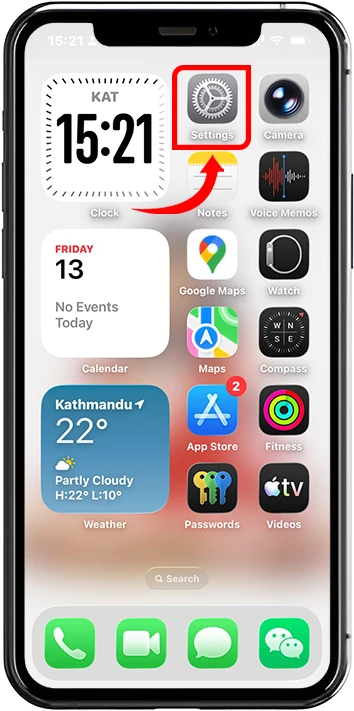
1. Unlock your iPhone and locate the Settings app (represented by a gear icon).
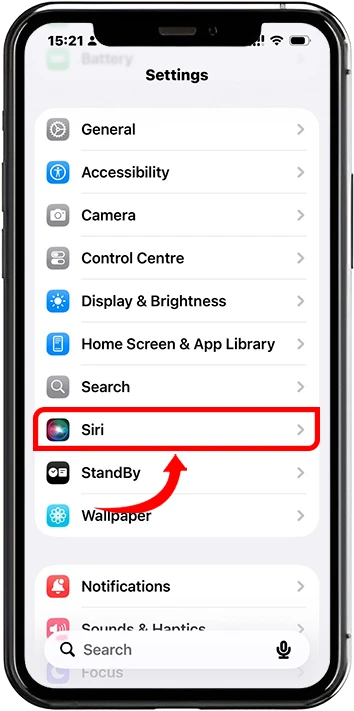
2. Scroll down the menu and tap on Siri.
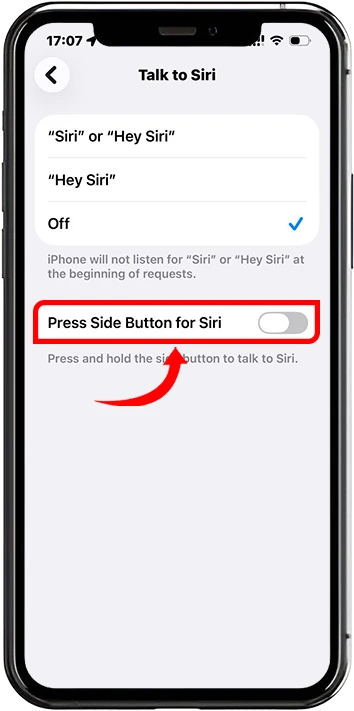
3. Scroll down and Tap to “Talk to Siri” and tap it to turn it off. Next, locate the toggle switch labeled Press Side Button for Siri (on iPhones with Face ID) or Press Home for Siri (on iPhones with a Home button). Tap this switch to turn it off.
4. Once you have toggled both switches off, a confirmation pop-up will appear at the bottom of the screen asking if you want to Turn Off Siri.
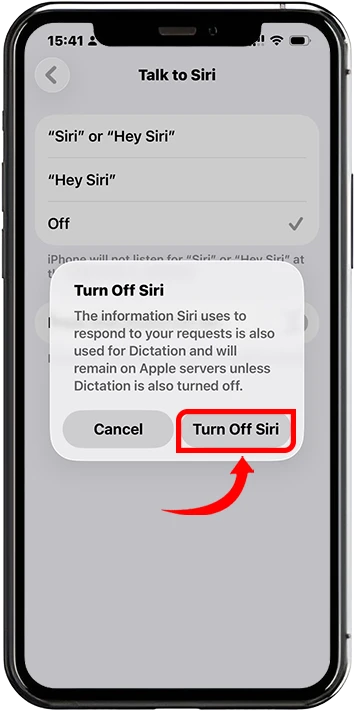
5. Tap Turn Off Siri to confirm.
Note: When you turn off Siri completely, Apple may delete the data used to learn your voice from its servers, though dictation data may remain if the Dictation feature is still enabled.
What Happens When You Turn Off Siri?
Disabling Siri changes how you interact with your iPhone in several specific ways. It is important to understand these consequences before proceeding:
- No Voice Commands: You will no longer be able to ask your phone to make calls, send texts, or set alarms using your voice.
- CarPlay Limitations: If you use Apple CarPlay, Siri is the primary interface. Turning off Siri may severely limit or disable CarPlay functionality, as it relies on voice commands for safety while driving.
- Dictation Remains Available: Interestingly, turning off Siri does not automatically turn off voice dictation (the microphone icon on the keyboard). This is handled separately in Settings under General > Keyboard.
- Voice Control Accessibility: The “Voice Control” accessibility feature is separate from Siri. If you rely on Voice Control for accessibility needs, turning off Siri will not disable that specific feature.
Alternative: Turning Off “Hey Siri” Only
If you find the “Hey Siri” wake word annoying but still want the ability to summon the assistant manually (by pressing a button), you can disable just the voice activation feature. This solves the problem of accidental activation while keeping the utility of the assistant.
1. Open the Settings app.
2. Tap on Siri and Tap to Talk to Siri.
3. Tap off.
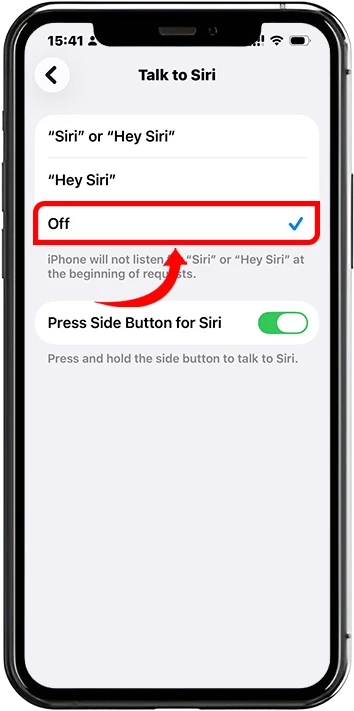
4. Leave the switch for Press Side Button for Siri (or Home Button) turned ON.
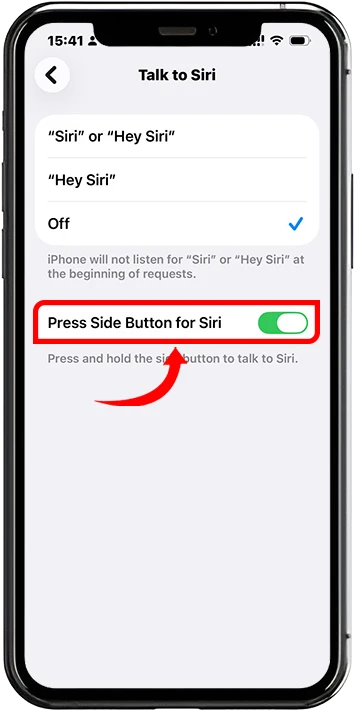
With this configuration, Siri will only activate when you physically hold down the side button or home button.
How to Turn Off Siri Suggestions
Even if you disable the voice assistant, your iPhone may still try to offer “Siri Suggestions” in Spotlight Search, Look Up, or on the Lock Screen. To completely remove Siri’s presence from your user interface:
1. Go to Settings > Siri.
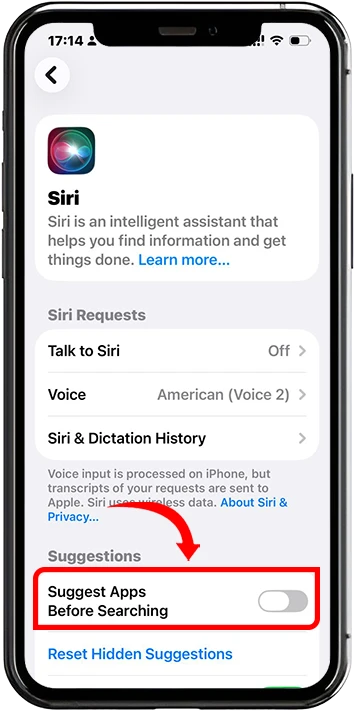
2. Scroll down to the section labeled Suggestions.
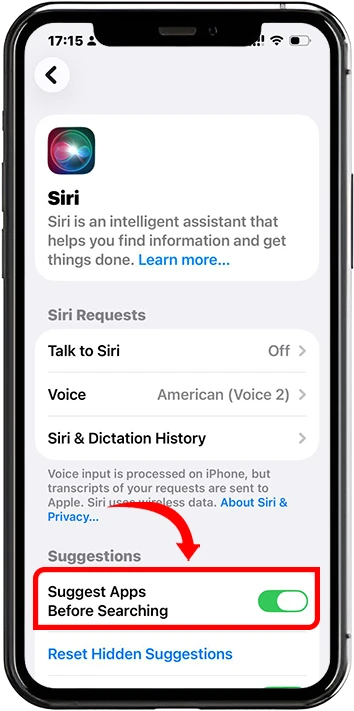
3. Toggle off Suggest Apps Before Searching.
How to Re-enable Siri
If you change your mind and wish to use Siri again, the process to reverse these changes is simple:
1. Go to Settings > Siri.
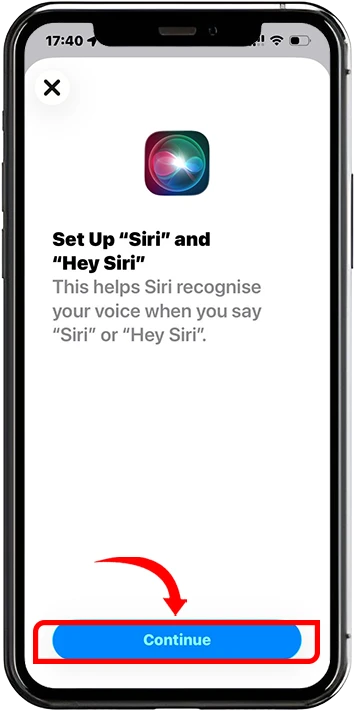
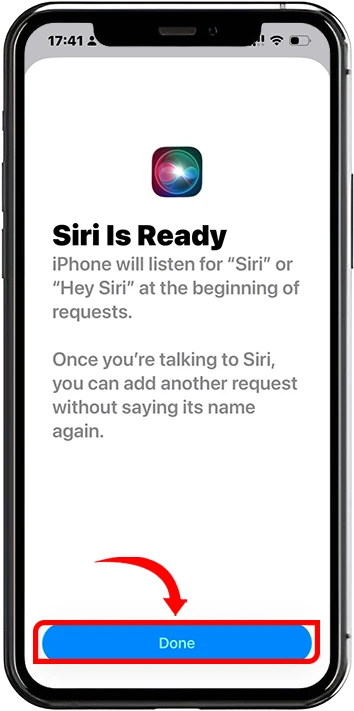
2. Tap to Talk to Siri then Tap to “Siri” or “Hey Siri” and toggle Button on Press Side Button for Siri.
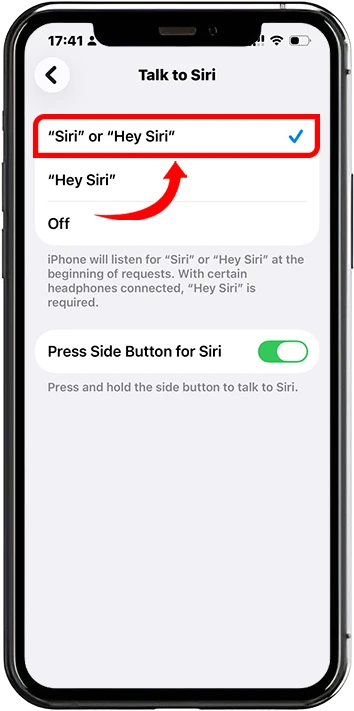
3. If you re-enable “Hey Siri,” you will be prompted to go through a brief setup process where you speak a few phrases so the iPhone can learn to recognize your voice again.